Editor
VS Code-class editing for JSON and YAML, fully local.
What it does
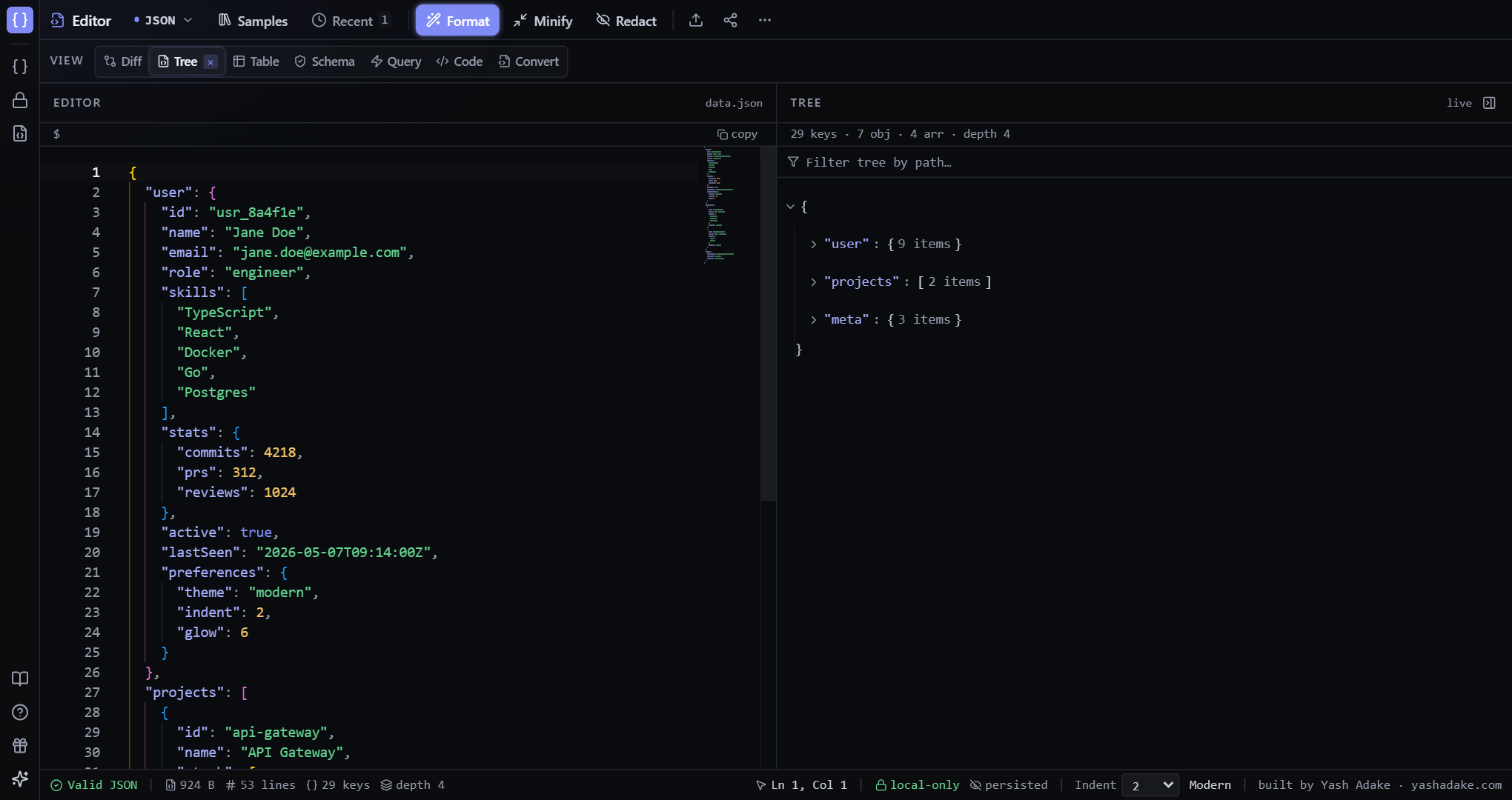
MyJSON ships Monaco — the editor engine behind VS Code — with custom themes, real JSON/YAML syntax highlighting, bracket-pair colorization, indent guides, sticky scrolling, and a minimap. Every edit is debounced and re-parsed in 180ms so the status bar always reflects the live state.
Modes & dialects
Switch between JSON and YAML with the mode toggle in the toolbar — content converts losslessly when you flip. JSON mode also accepts JSON5 (comments, trailing commas, unquoted keys) automatically when strict JSON parsing fails — you don't have to opt in.
Error markers
When parsing fails, the offending line gets a red marker and a tooltip that explains what went wrong (with line and column). The status bar mirrors the error and the Repair button appears for one-click fix.
Document name & filenames
Upload any file and MyJSON remembers its name — it shows in the editor header and is reused when you download (with a `_myjson` suffix appended so you can tell at a glance which files came from here).
Examples
Quick beautify
You pasted a one-line minified JSON response from a curl command and want to read it.
- Paste the minified JSON.
- Press Ctrl+Enter (or click Format).
- The editor reflows with proper indentation.
{"id":"u1","name":"x","skills":["go","rust"]}{
"id": "u1",
"name": "x",
"skills": ["go", "rust"]
}Switch to YAML mid-edit
You drafted a Kubernetes manifest as JSON but your platform expects YAML.
- Click the JSON / YAML toggle.
- Content converts in place — no data lost.
{
  "apiVersion": "v1",
  "kind": "ConfigMap",
  "metadata": { "name": "demo" }
}apiVersion: v1
kind: ConfigMap
metadata:
name: demo